This functionality existed in Outlook 2003.
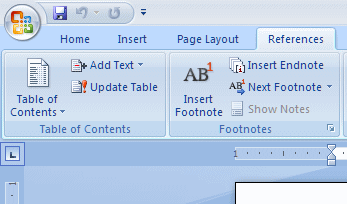
Figure: Table of Contents functionality in MS Word 2007

Do you agree that products always have room for improvement?
"Every day there are little things in software that we find annoying. Some write books about it, like Annoyances.org, but I thought this site would be more constructive.
BetterSoftwareSuggestions.com is proudly maintained by myself and the developers at SSW."
 - Adam Cogan
This functionality existed in Outlook 2003.
Figure: Table of Contents functionality in MS Word 2007
I see nothing good about it and outlook handles RTF poorly by replacing images with ” << OLE Object: Picture (Device Independent Bitmap) >> ”
Also change “HTML” to “HTML (recommended)”:
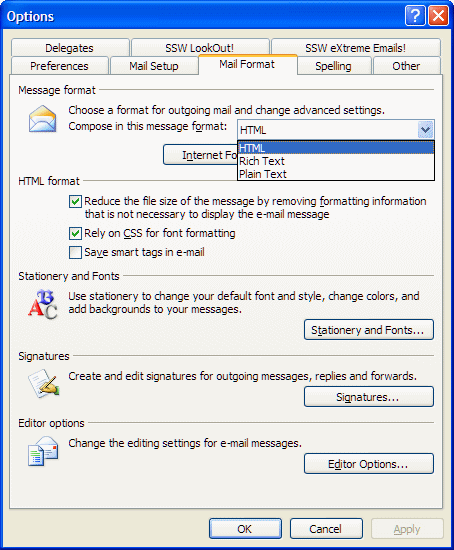
Figure: Change “HTML” to “HTML (recommended)” and remove Rich Text
Figure: Only 7 all day events are visibleFrom the screenshot below, we can see 7 all day events, and it looks like that’s all on the date.
Now we maximized Outlook, and we can see up to 11 all day events.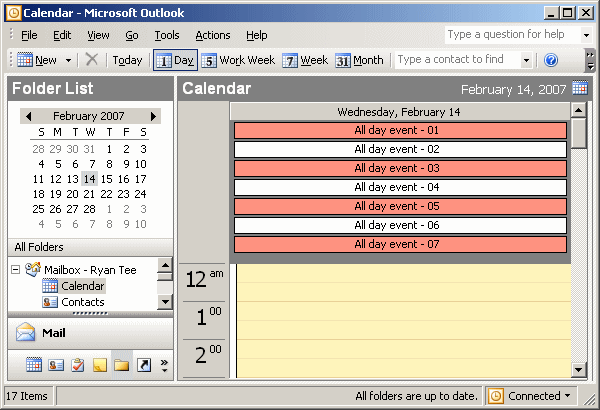
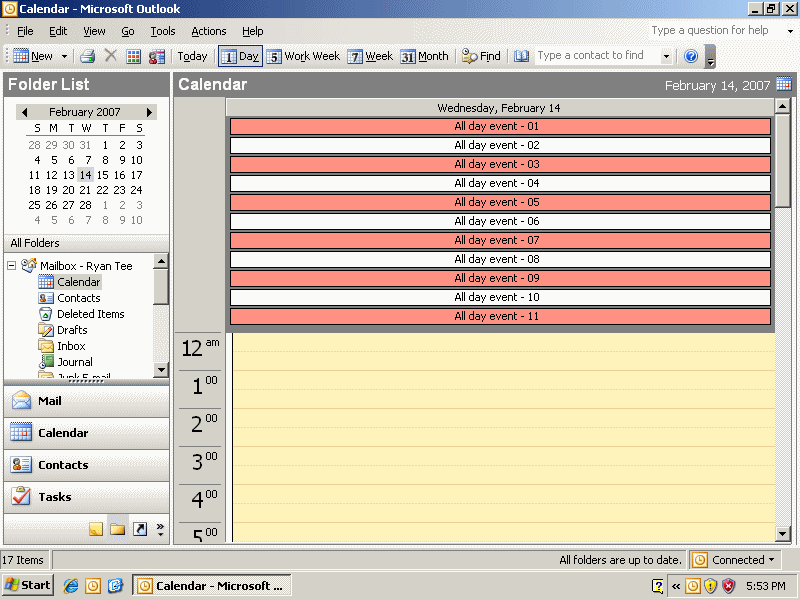
Figure: We can see more all day events when Outlook is maximized
In fact, these 11 all day events are not all on the date. There are more, but the rest is not visible due to the limited window size and screen resolution.
This is seriously annoying, a user might think that the all day events they entered have gone missing. And they might miss an appointment if the reminder alarm is not set.
The only way to see more is to change your screen resolution to a bigger one. If you still can’t see all, then hide some of the toolbars so that you have more space for Outlook to show the all day events, but how pratical is this?
Why can’t the all day events be put on to a scrollable panel? (like Outlook 2007, or Outlook Web Access)
Or at least, it should show a message to inform users not all of the all day events are visible!
When the Send/Receive button is clicked in Outlook a progress window is shown. Using the words “Completed” and “Processing” can have a nasty side effect of not being able to easily see which messages are still to be processed. A better Solution would be to change the word “Completed” by the word “Done”.
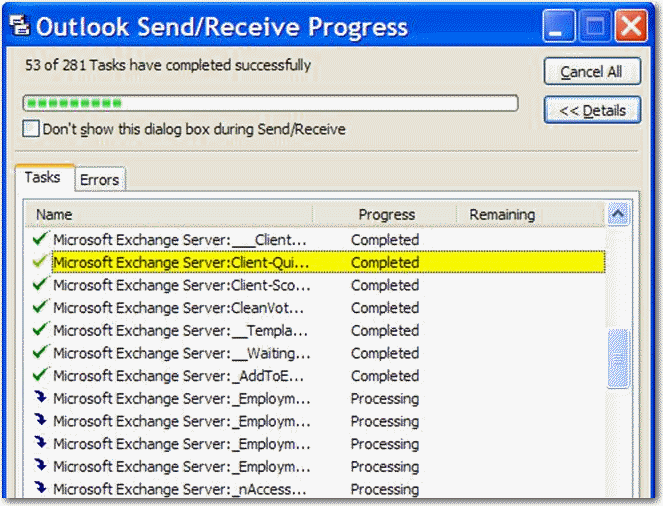
Figure: Outlook progress window
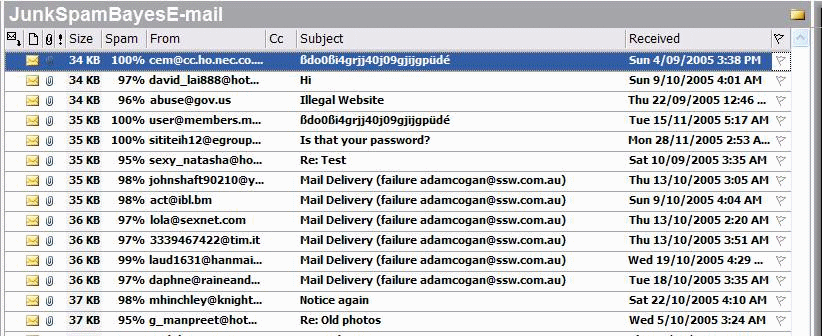
Sending SMSs should be as easy as sending an email. Outlook should include the functionality of the greater COM Addin from Reg Oxygen OutlookSMS, also Outlook should provide SMS folder and allow ActiveSync to sync your SMS messages to mobile phones.
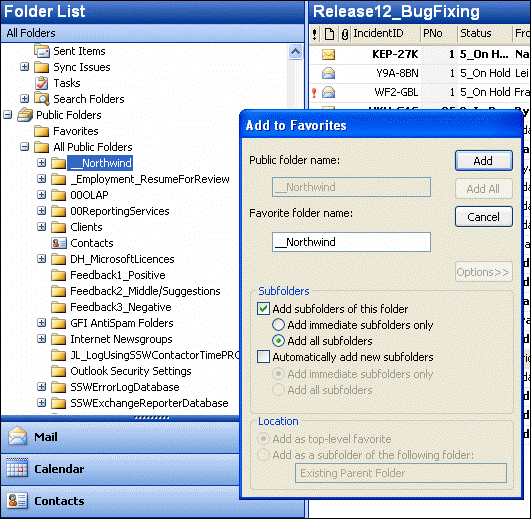
You are not allowed to create new folders under Favorites.
When you are adding to Favorites, don’t just add single Project Folder.
But add the entire hierarchy making sure that all sub folders are included.
How many times have you create a meeting request – saved and sent it – then realised you forgot to put the time and date.
You reopen it and fix it – but the other person still receives the original email with an “Updated: xxxxx”
Why would the assumption be every meeting is going to be for the next 30 minutes?
Microsoft, please default it to zero – or give an option in Tools Options to turn it off.
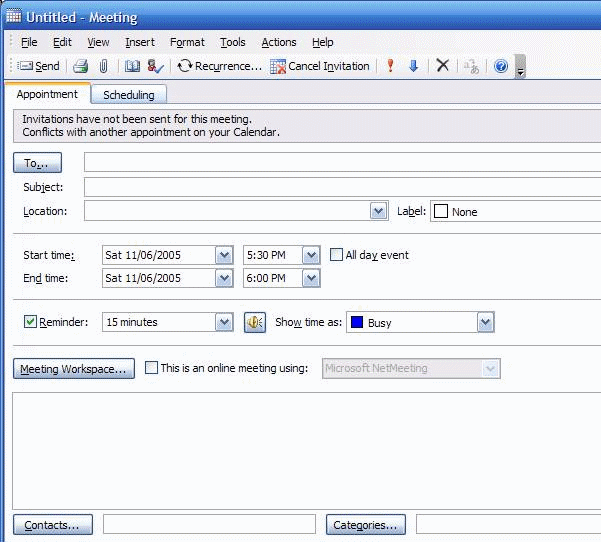
Figure: Microsoft Outlook assumes every meeting is going to be for the next 30 minutes
I want to work offline – but have everything sync every 5 minutes (EXCEPT my Outbox – I will do that manually)
1) So I choose File | Work Offline
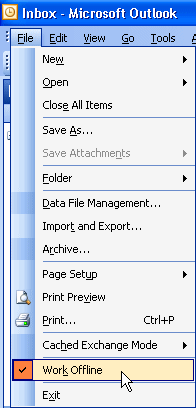
Figure: Select Work Offline
2) Select Define Send/Receive Groups
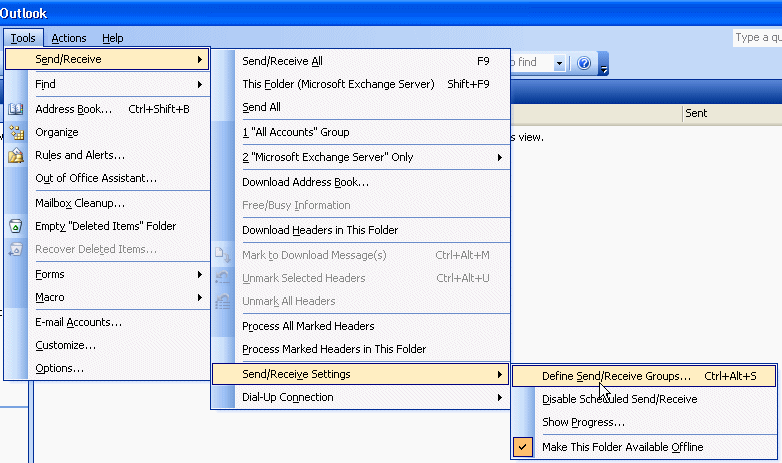
Figure: Select Define Send/Receive Groups
3) Tick the checkbox – Schedule an automatic send/receive every 5 minutes, then edit ‘All Accounts’.
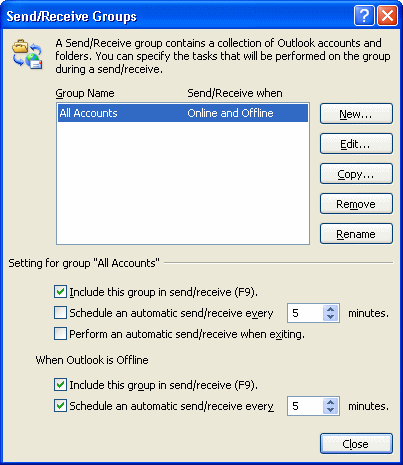
Figure: Send/Receive Groups
4) Then check off “Send mail items”
However it keeps sending emails because the Outbox is selected in the tree control The Outbox should show as Strikethrough when that checkbox is off
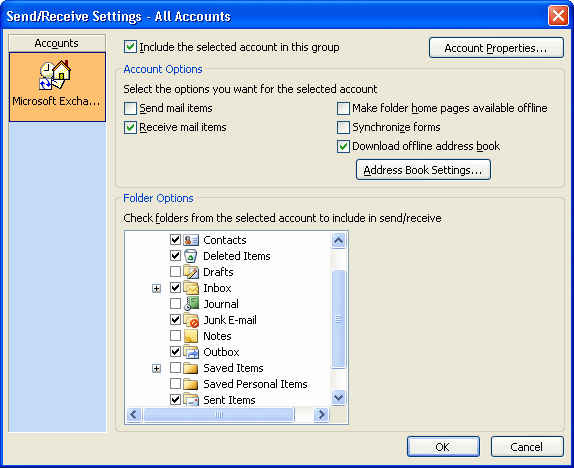
Figure: Bad UI in Send/Receive Settings, the Outbox should show as strikethrough
The location field should have the full path viewable. I use the Lookout Tool a lot and want to know which folder an email is in.
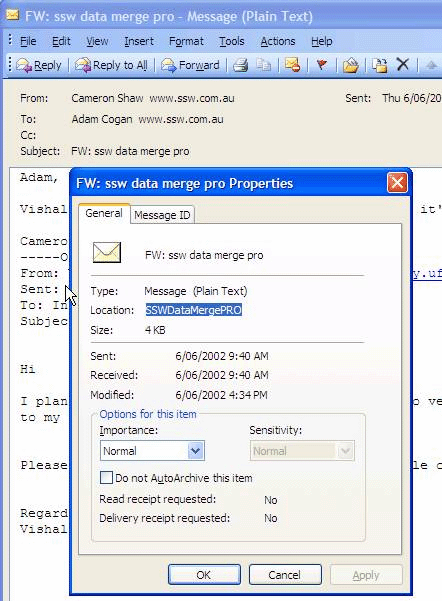
Figure: List the folder in the location field