Calendar entries should support HTML formatting

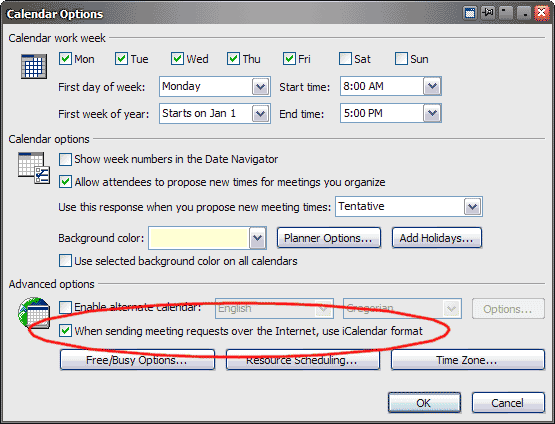
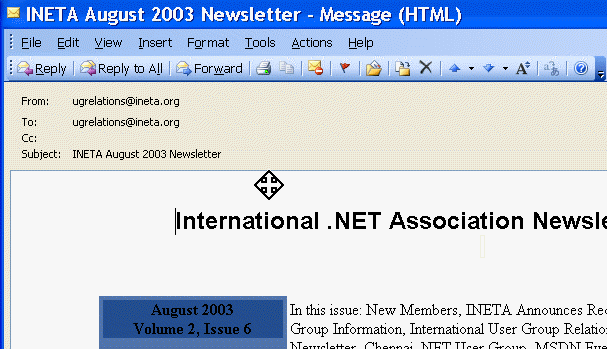
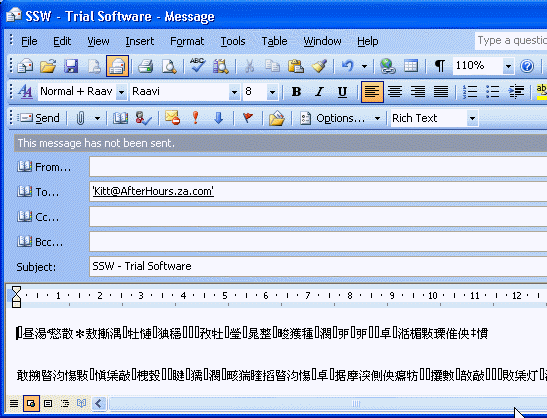
Our observations suggest that all calendar entries created with Microsoft Outlook are in Rich Text format. Seeing this has a message size overhead and is less supported by all mail clients, we’d like to see an option for HTML formatting. From what we can tell, the iCalendar format that Outlook makes use of does not have any requirements for rich text.

Figure: An option for calendar formatting could be found around the iCalendar-relevant data on this screen

Figure: An option for calendar formatting could be found around the iCalendar-relevant data on this screen

Outlook should support treating Emails as Tasks

We believe that email is at it’s most effective when you’re using your inbox as a task list. If you need to ask someone a question it’s usually a better option to use the phone. If you are asking someone to do something however, email works really well, because you then have a record of the task – with the date and time as well. Outlook should encourage you using your email as a task tracking system, and provide a way you can see the status of emails.

When you send an email there should be a field ‘Action’ with these choices:

  • Task – Action Required (default)
  • FYI – email is for information purposes only, no action required

Please add a status combo field to emails (should appear by default in sent items):

  1. N/A was a FYI
  2. N/A by Adam on 21/9/2005
  3. Replied Not Resolved
  4. Not Replied in \\Tim\inbox
  5. Not Replied deleted from \\Tim\inbox

Corrupt .PST and .OST Files

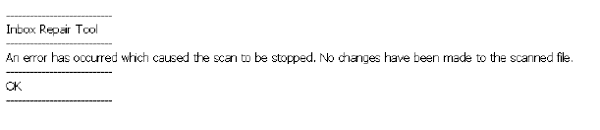
We need something better than a .pst file. I would prefer a SQL/MSDE database file that has less chance of going corrupt. I have seen this message box too many times and the tools scanpst.exe and scanost.exe do not fix it.

Figure: There should be something better that .PST files

Figure: There should be something better that .PST files

Bad Outlook Programming Model: Cached Exchange Mode Limitations

Cached Items in Outlook

When “Cached Exchange Mode” is enabled, items which have been cached locally will have some unexpected behaviour. This feature allows one to work with your personal folders, as well as selected public folder contents even when they’re disconnected from the Exchange Server.

However, once that feature is enabled, if you attempt to access the Parent.FolderPath property, you will be returned an inaccurate folder path. To see this bug in action, select an item in a subfolder of the folder which you have added to Favorites. Now press Alt+F11 to bring up the Visual Basic editor, followed by Ctrl+G to bring up the Immediate window.

Application.ActiveExplorer.Selection(1).Parent.FolderPath

This will return

'\\Public Folders\Favorites\ImmediateParentFolder'

One would assume it would return

'\\Public Folders\Favorites\ParentFolder\ImmediateParentFolder'

but that’s not the case. If you disable “Download Public Folder Favorites”, then the above code would return the correct canonical path of the folder.

'\\Public Folders\All Public Folders\ParentFolder\ImmediateParentFolder'

In our product SSW eXtremeEmails!, it prevents the Incident screen from obtaining a valid URL for the email item.
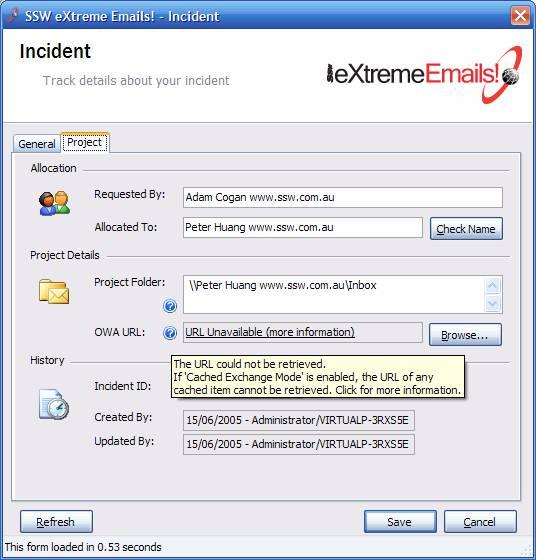
Figure: CDO object model failed to retrieve Outlook Web Access URL

Figure: CDO object model failed to retrieve Outlook Web Access URL

As a work around, the “Download Public Folder Favorites” settings should be disabled. If you wish to see correct URLs in your personal folders, “Cached Exchanged Mode” must be disabled all together.
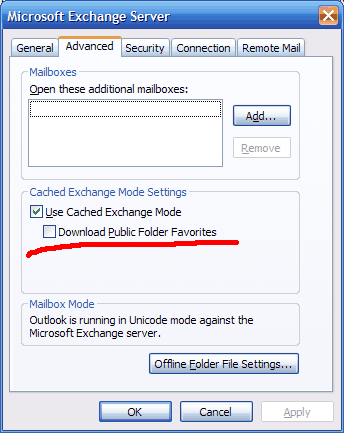
 Figure: Disabling Cached Exchange Mode as a work around to invalid item properties


Figure: Disabling Cached Exchange Mode as a work around to invalid item properties

I hope this would be fixed in the next version of Outlook. Items in folders added to Favorites should provide the canonical path to aid Outlook ‘smart client’ plug-ins with Offline functionality, even when “Download Public Folder Favorites” is enabled.